


Post-Call WhatsApp
Automatically send WhatsApp follow-ups after every AI call —confirmations, location pins, documents, or next-step reminders — withoutanyone lifting a finger.
Overview
Post-Call WhatsApp lets youconfigure automatic WhatsApp messages that are sent to callers immediatelyafter an AI voice call ends. Instead of relying on a team member to follow up,the system sends a pre-defined message the moment the call wraps — keeping themomentum while the conversation is still fresh.
This is especially powerful foruse cases where the caller needs something tangible after the call: a bookingconfirmation, a Google Maps link to your office, a brochure or price list, or aquick summary of what was discussed.
How it works
1. Your AI voice agentcompletes an inbound or outbound call.
2. Based on the callprofile, AssistifAI automatically sends a WhatsApp message to the caller usinga pre-approved template.
3. The message caninclude text, links, documents, location pins, or any content supported byWhatsApp templates.
4. Every sent message islogged and trackable in the Message Logs tab.
Common use cases
Appointment confirmations —Send a confirmation message with date, time, and location right after thecaller books.
Location sharing — Sharea Google Maps pin so the caller knows exactly where to go for their site visitor appointment.
Document delivery — Sendbrochures, price lists, catalogues, or intake forms as WhatsApp attachments.
Lead follow-up — Forqualifying calls, send a personalised follow-up template that keeps the leadwarm.
Post-call summary — Senda quick recap of the call so the customer has a written reference.
ℹ️Prerequisite: You need at least oneWhatsApp number connected to your workspace, an approved WhatsApp messagetemplate, and an active AI call profile (inbound or outbound) to use thisfeature.
Navigating to Post-Call WhatsApp
To access Post-Call WhatsApp:
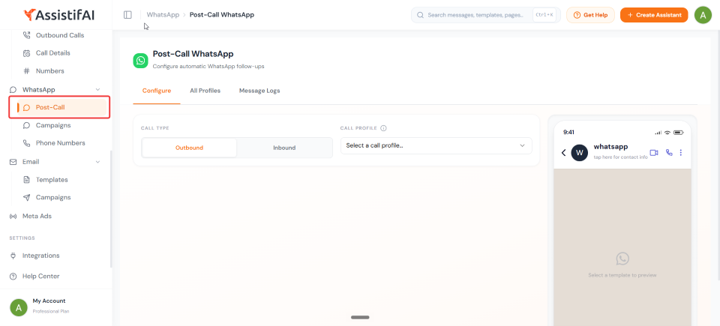
1. Open your AssistifAIdashboard at app.assistifai.me.
2. In the left sidebar,expand the WhatsApp section.
3. Click Post-Call.

Configure Tab
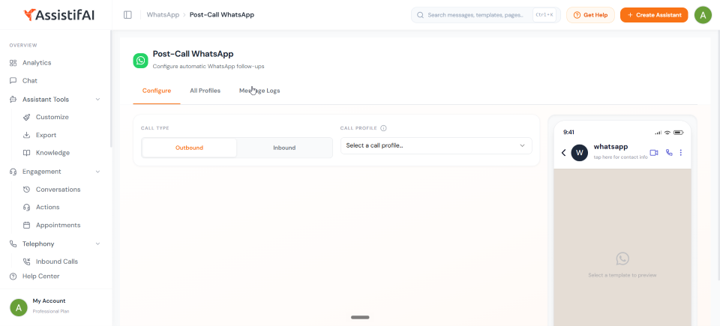
The Configure tab is where youset up a new post-call follow-up rule. It connects a specific call profile to aWhatsApp message template, so the right message goes out after the right typeof call.
Step 1: Choose the call type
Under Call Type, selectwhether this follow-up applies to Outbound or Inbound calls.
Outbound — Calls placedby your AI agent (e.g. lead qualification campaigns, appointment reminders,follow-up calls).
Inbound — Calls receivedby your AI agent (e.g. customer enquiries, appointment requests, supportcalls).
Step 2: Select a call profile
Under Call Profile, pickthe specific AI agent profile this follow-up should be linked to. The dropdownlists all active call profiles in your workspace.
Each call profile represents adistinct AI voice agent with its own script, personality, and purpose. Bylinking a post-call message to a specific profile, you can send differentfollow-ups for different types of calls — a site-visit confirmation for yourreal estate agent, a brochure for your sales agent, and so on.
💡Tip: The info icon (ⓘ) next to CallProfile shows a tooltip explaining what profiles are and how they map to yourvoice agents.
Step 3: Select a message template
Once you've selected a callprofile, the message template options will appear. Choose a pre-approvedWhatsApp template from the dropdown. The phone preview on the right updates toshow exactly what the recipient will see.
ℹ️ Note: Templates must be approved by WhatsApp through theBusiness API before they appear here. If you don't see any templates, checkWhatsApp → Phone Numbers or contact support.
Step 4: Save the configuration
After selecting the call type,profile, and template, save the configuration. From this point on, every callhandled by the selected profile will automatically trigger the linked WhatsAppmessage when the call ends.
All Profiles Tab
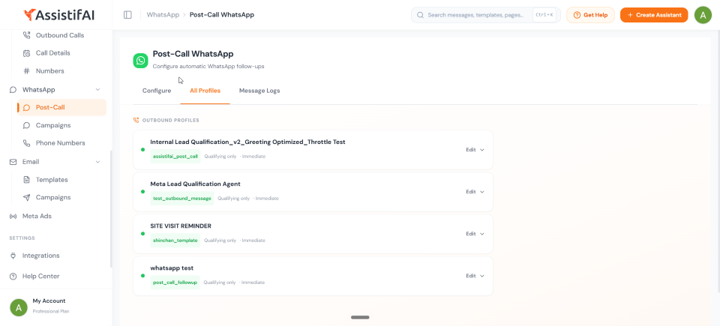
The All Profiles tab gives youan at-a-glance view of every post-call follow-up you've configured. Each cardrepresents one call profile with its linked WhatsApp template.
Reading a profile card
Each profile card shows fourpieces of information:
Profile status
The green dot next toeach profile name indicates that the follow-up is active. When a profileis active, its linked template will be sent automatically after every matchingcall.
Editing a profile
Click the Edit ▼ buttonon the right side of any profile card to modify its configuration — change thelinked template, adjust qualification criteria, or update timing settings.
💡Tip: If you're running multiple AIagents (e.g. one for lead qualification, one for appointment reminders, one forsite visit follow-ups), you'll see a separate profile card for each, making iteasy to manage all your post-call automations in one place.
Message Logs Tab
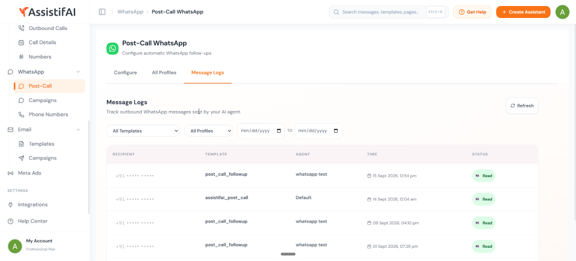
The Message Logs tab is youraudit trail — it shows every WhatsApp message that was automatically sent byyour AI agent after a call, with full delivery tracking.
Log table columns
Filtering logs
Use the filter bar at the top ofthe logs table to narrow down what you see:
All Templates — Filter bya specific WhatsApp template to see only messages sent using that template.
All Profiles — Filter bya specific AI agent profile to see messages triggered by that agent.
Date range — Set a startand end date to view messages from a specific time period.
💡Tip: Click the Refresh button in thetop-right corner to pull the latest message delivery statuses.
Message statuses
Example: Setting Up a Site-Visit Confirmation
Here's a real-world walkthroughof configuring a post-call WhatsApp follow-up for a real estate agency:
Scenario: Your AI agentqualifies inbound callers asking about properties. When a caller books a sitevisit, you want to automatically send them a WhatsApp message with the propertyaddress and a Google Maps link.
1. Navigate to WhatsApp → Post-Call in the sidebar.
2. On the Configure tab, set Call Type to Inbound.
3. Select your real estate call profile from the Call Profile dropdown (e.g. "Property Enquiry Agent").
4. Choose a WhatsApp template that includes the site address and map link (e.g. a template with variables for address and Google Maps URL).
5. Preview the message inthe phone mockup on the right to verify it looks correct.
6. Save. From now on, every qualifying inbound call to that agent will trigger the site-visit WhatsApp automatically.
💡Tip: You can verify it's working bychecking the Message Logs tab after the next qualifying call — you should seethe message appear with a Sent or Delivered status within seconds.
Best Practices
Match the template to the call purpose — A lead qualification agent should send a different follow-up than a support agent. Use the profile-to-template mapping to keep messages relevant.
Keep templates concise —Post-call messages work best when they're short and action-oriented: aconfirmation, a link, a next step. Save longer content for email.
Use qualifying filters —Setting follow-ups to "Qualifying only" prevents wasted messages oncalls that didn't convert (e.g. wrong numbers, spam, unqualified leads).
Monitor your Message Logs weekly — Check for delivery failures, unusual patterns, or templates with low read rates. A high failure rate usually means stale phone numbers in your system.
Test before going live —Call your own AI agent, let the call qualify, and verify the WhatsApp messagearrives correctly before rolling the feature out to real callers.
Create separate profiles for separate follow-ups — If your AI handles multiple scenarios (sales calls, support calls, reminder calls), create a distinct call profile and post-call template for each rather than using one catch-all.
Troubleshooting
No call profiles in the dropdown? You need at least one active AI call profile. Go to Telephony →Inbound Calls or Outbound Calls in the sidebar to create one.
No templates available? WhatsApp message templates must be created and approved via the WhatsApp Business API. Check WhatsApp → Phone Numbers or the Templates section under your provider settings.
Messages not sending after calls? Verify three things: (1) the profile is active (green dot on All Profiles), (2) the call meets the qualification criteria, and (3) the caller's phone number is a valid WhatsApp number.
Message shows "Failed" in logs? The most common causes are: the recipient's phone number isn't on WhatsApp, the number is invalid or has opted out, or the template was paused by WhatsApp due to low quality. Check the number and template status.
Wrong template being sent? Goto All Profiles and check which template is linked to the firing profile. Ifyou have multiple profiles, make sure the correct one is mapped to the correcttemplate via Edit.
Follow-up sent for calls that shouldn't qualify? Review the qualification criteria on your call profile. Set the follow-up to "Qualifying only" instead of sending on every call.
Need help? Reach out at assistifai.me → Company → Support

