


Meta Leads Ads Setup
Connect Meta Lead Ads to your AI voice agent
Once this connection is live, every submission on the lead forms you choose flows straight into AssistifAI, and the AI agent you assign calls the lead within seconds — no manual exports, no waiting for someone to notice the row in a spreadsheet. Steps 1 to 11 make the connection ;steps 12 to 14 cover routing, monitoring and results.
Step 1: Open Integrations
In AssistifAI, go to Settings → Integrations and click Connect Meta Lead Ads.
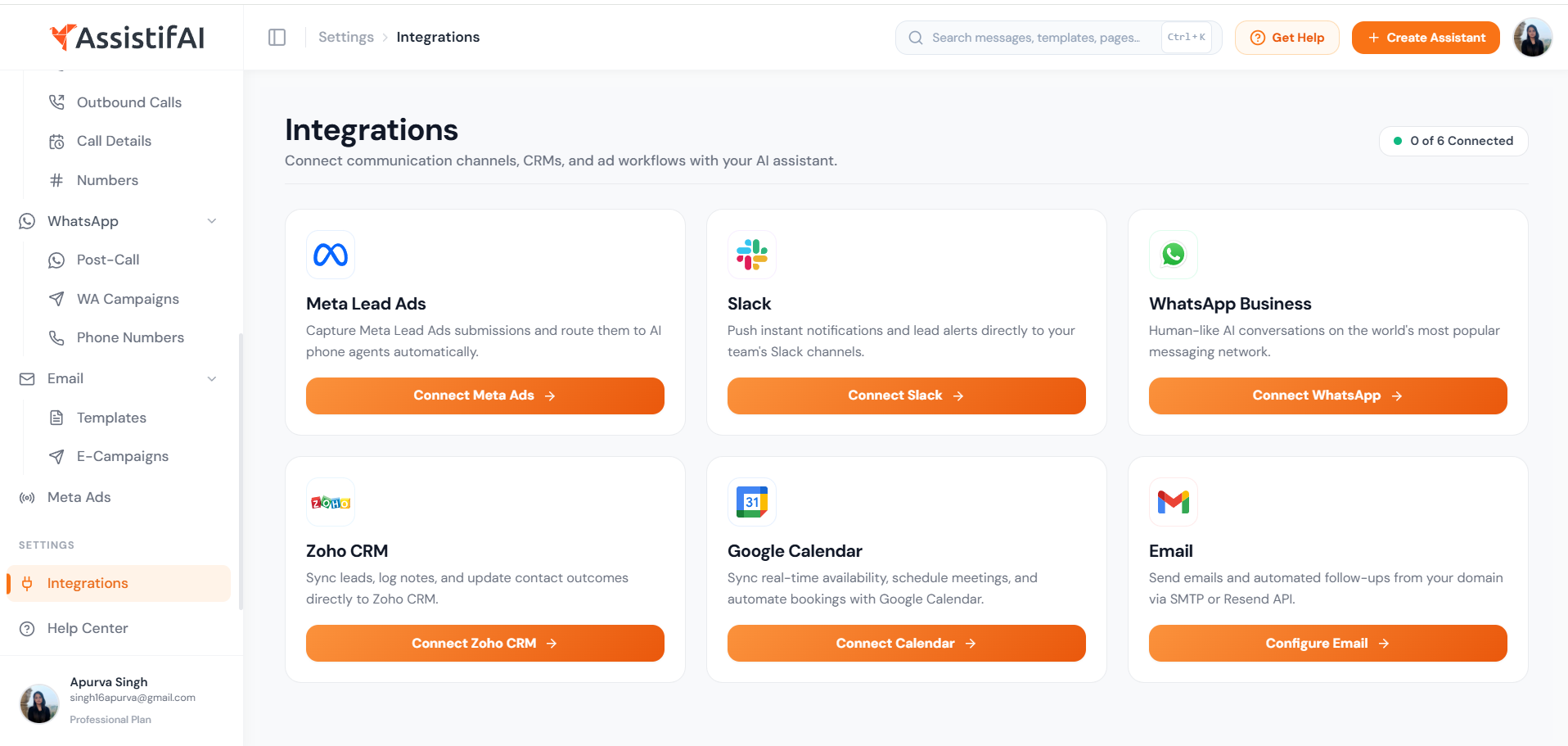
Step 2: Click Connect Meta Lead Ads
Click Connect Meta Ads. The dialog lists the three permissions being requested: read lead form submissions, receive real-time webhook events, and view ad account and page names. AssistifAI only reads leads — it cannot post or modify your ads.
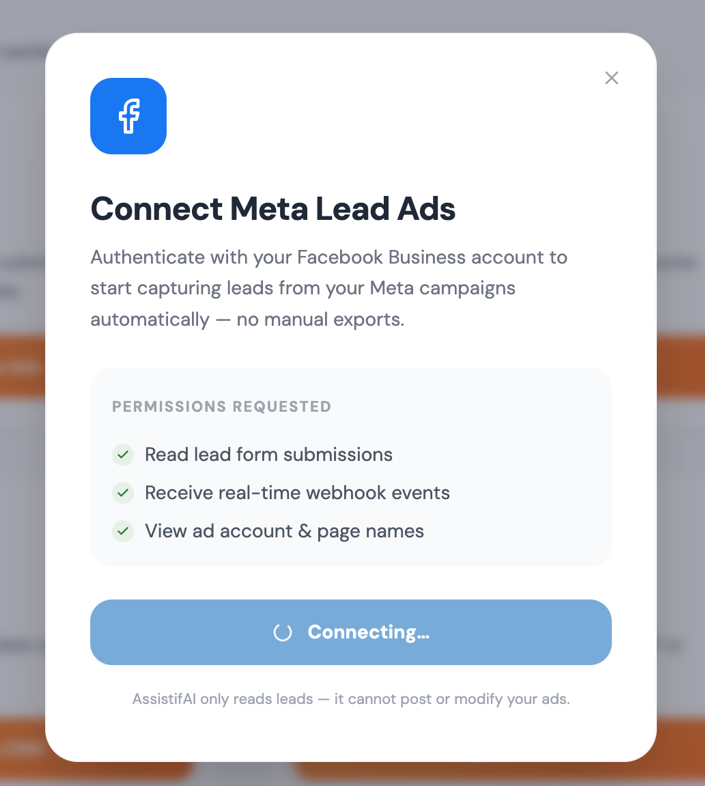
Step 3: Facebook opens its permission flow
A Facebook window takes over, headed Select the business assets to share with Assistifai. There are two fields to set: your business portfolio, and the Page whose lead forms you want to use.
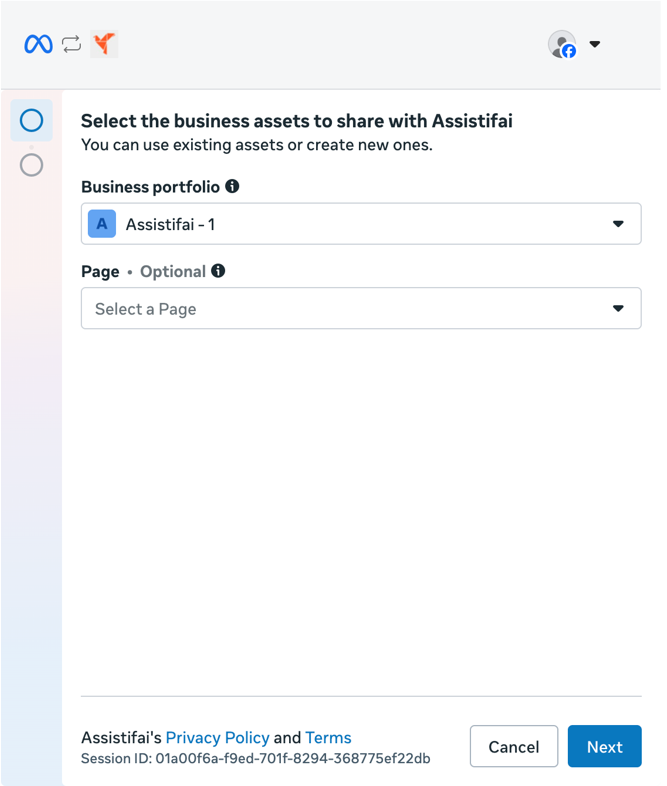
Step 4: Pick the business portfolio that owns your ads
Open Business portfolio and choose the portfolio your lead campaigns run under. Each option shows its ID, and verified portfolios are labelled. If you manage more than one, pick the one that owns the Page — otherwise no forms will appear later.
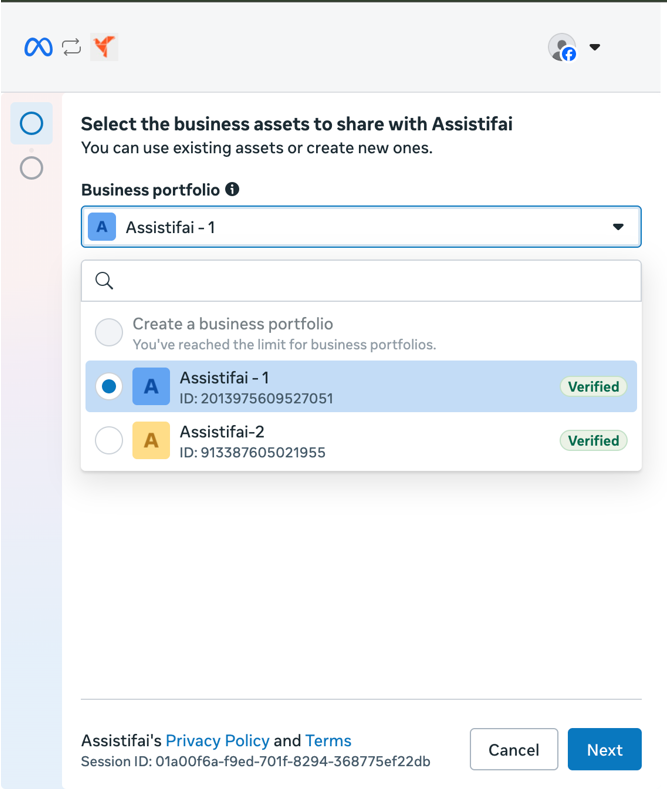

Step 5: Open the Page list
Open the Page dropdown. Pages inside the portfolio youselected are grouped under This portfolio,with an option to create a new one. The field is marked optional by Facebook,but you need a Page here for lead forms to come through.
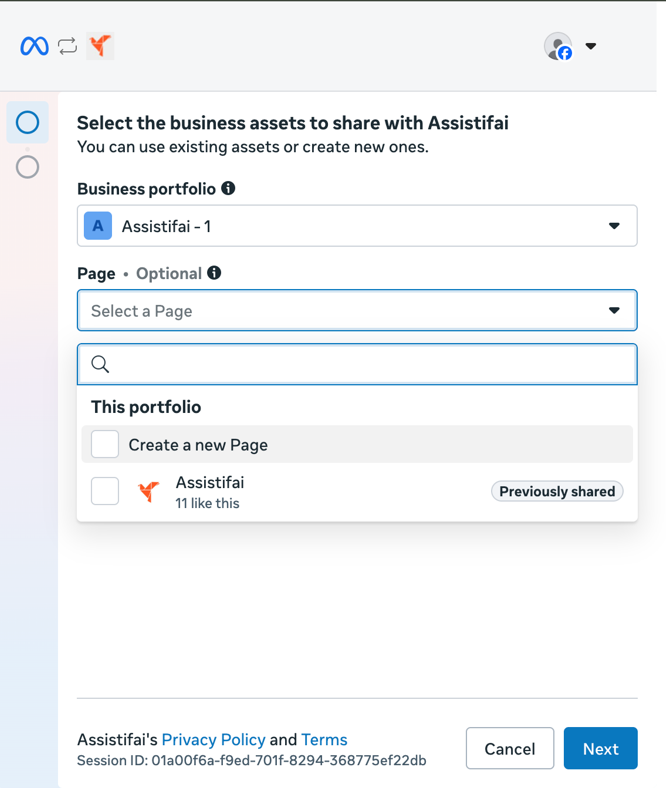
Step 6: Select the Page running your lead forms, then Next
Tick your Page and click Next. A Page you have connected to AssistifAI before is tagged Previously shared.
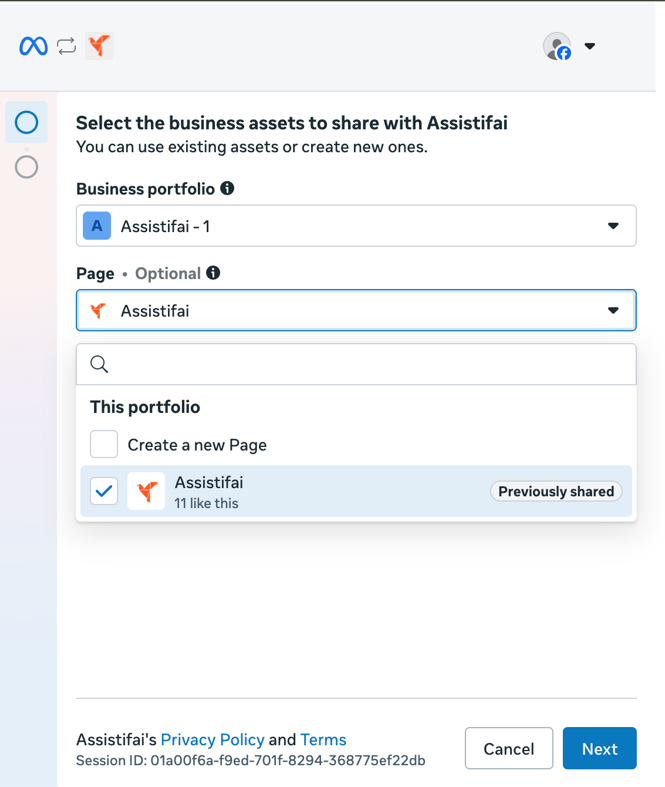
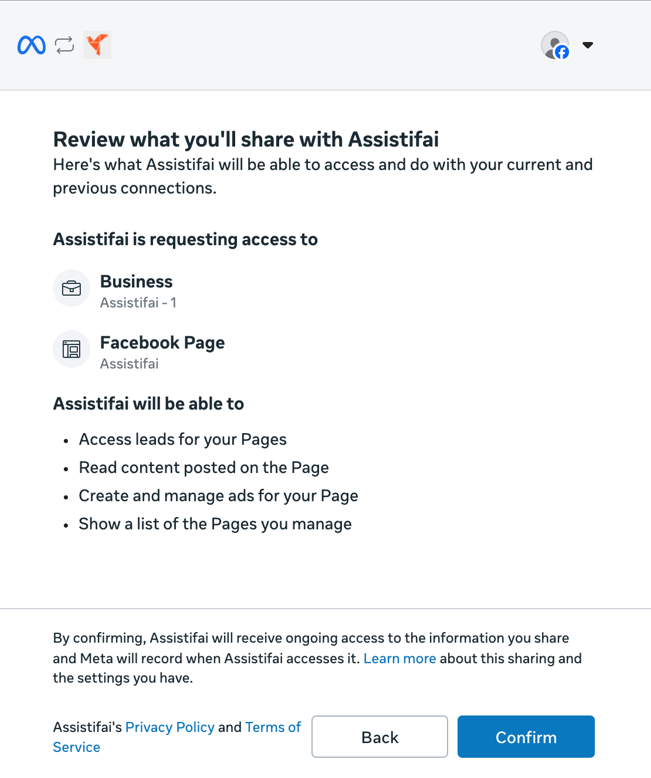
Step 7: Review the access, then Confirm
Facebook summarises the business and the Page being shared, and what AssistifAI will be able to do with them — access leads for your Pages, read content posted on the Page, create and manage ads for your Page, and list the Pages you manage. Click Confirm.
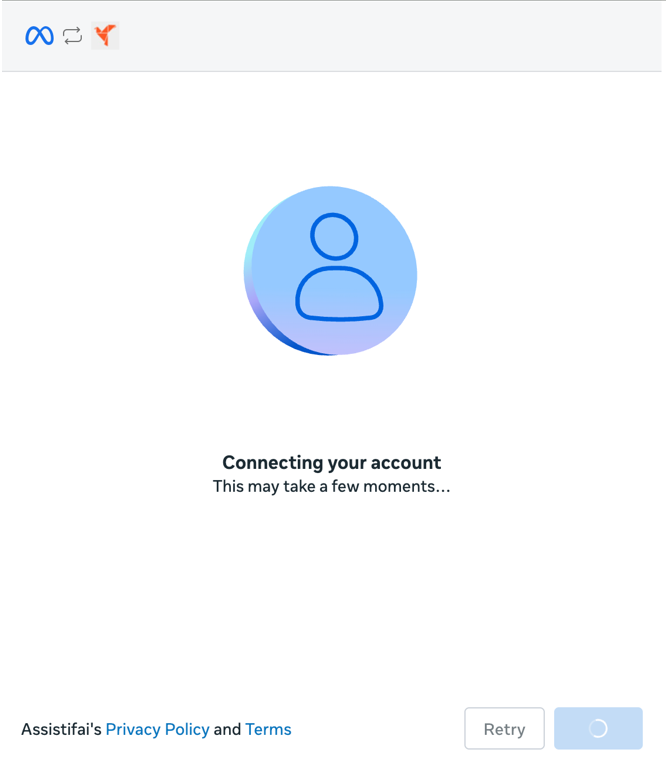
Step 8: Wait while Facebook links the account
The screen reads Connecting your account and takes a fewmoments. Leave the window open. If it does not move on, use Retryrather than starting again from Integrations.
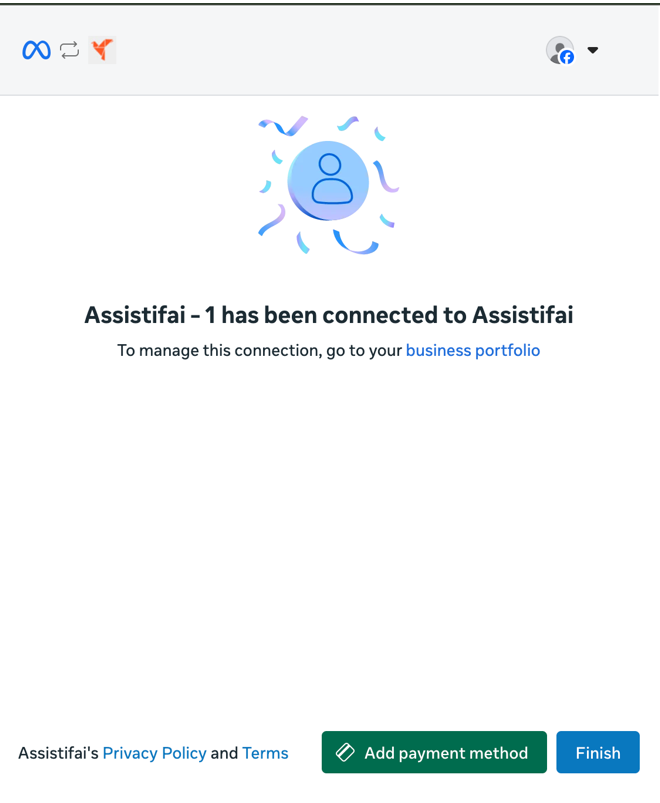
Step 9: Finish on Facebook’s side
Facebook confirms the portfolio is connected. Click Finishto hand control back to AssistifAI. Addpayment method beside it is Meta’s own prompt about ad billing, not part ofthis connection.
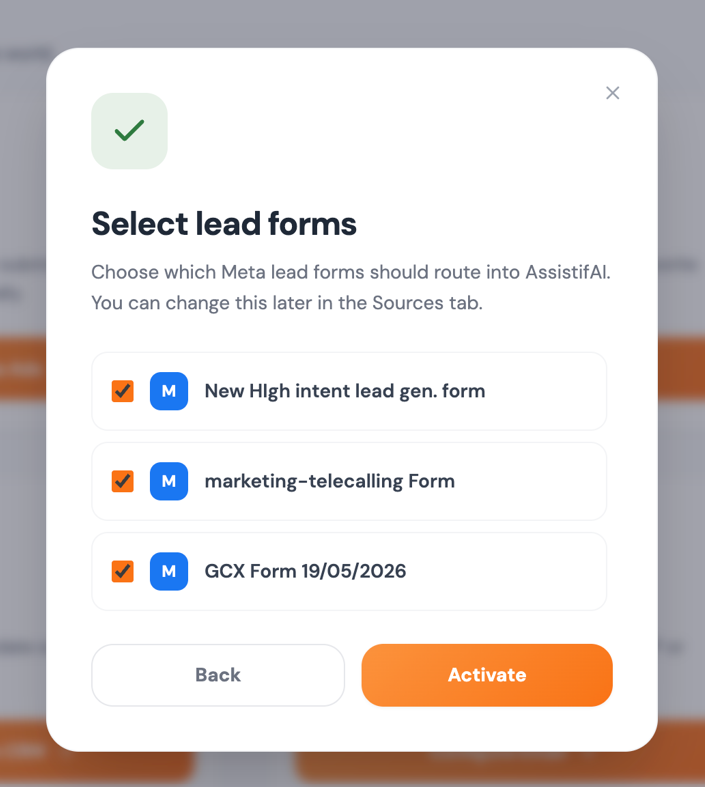
Step 10: Choose which lead forms route into AssistifAI
Back in AssistifAI, Select lead forms lists every form on the connected Page. Tick the ones whose submissions should trigger an AI call and click Activate. This choice is not permanent — you can change it later in the Sources tab.
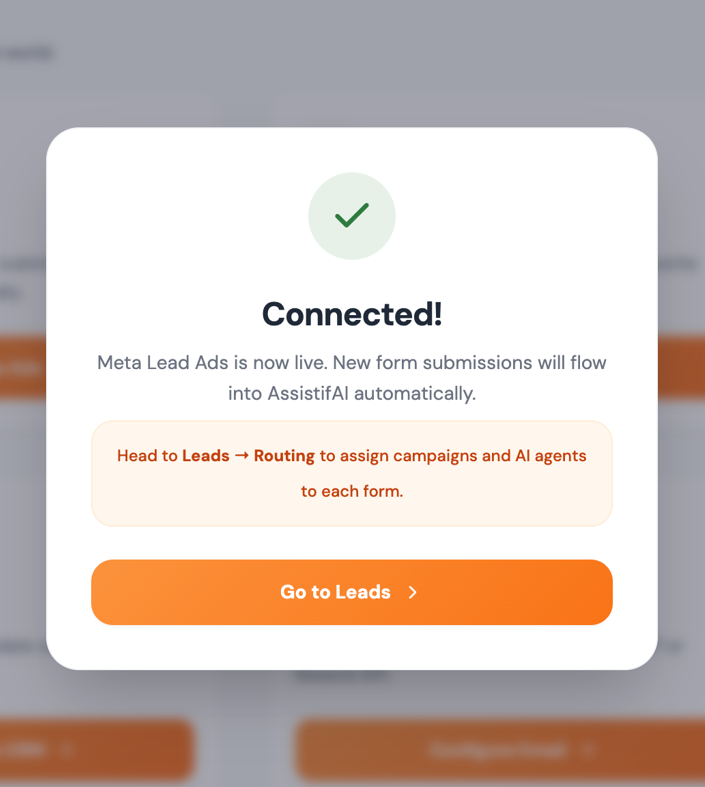
Step 11: You’re live — now assign the agents
The confirmation reads Meta Lead Ads is now live — newform submissions will flow into AssistifAI automatically. One thing is stilloutstanding: click Go to Leads and open Leads → Routing to assign acampaign and an AI agent to each form. Until a form has an agent, its leadsarrive but nobody calls them.
After the connection: routing, leads, results
Connecting Meta only opens the pipe. These three tabs— all under Leads— are where you decide who gets called, watch the calls happen, and read whatcame of them.
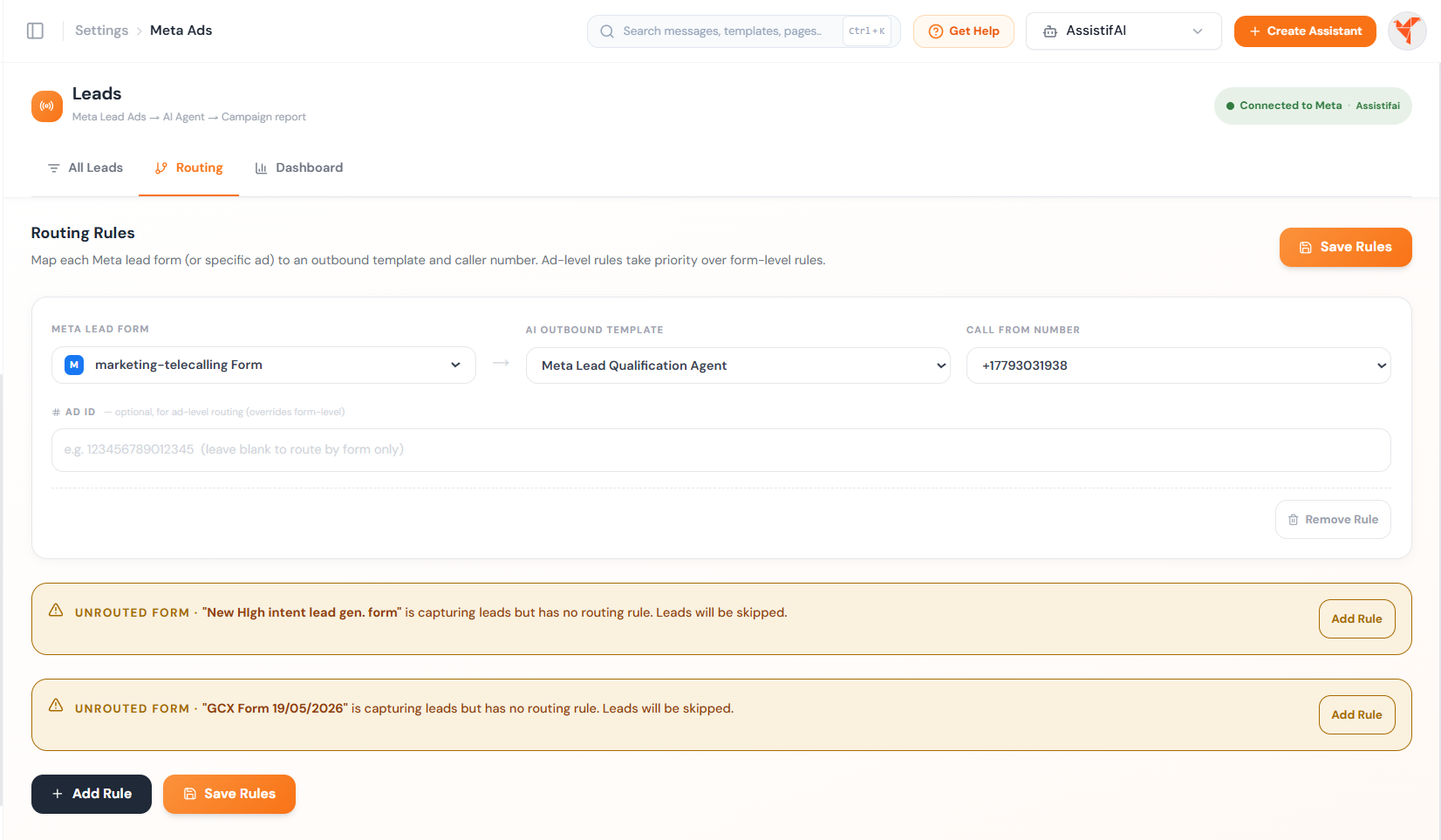
Step 12: Routing — point each form at an AI agent
A rule is three choices read left to right: the Meta lead form, the AI outbound template that will make the call, and the call from number the lead sees. Ad ID is optional — fill it only when one specific ad should be handled differently from the rest of its form. Click Save Rules when the rule is set.
Watch the amber warnings. Any form you activated instep 9 that has no rule yet is flagged Unrouted form — it captures leads, but they are skipped, and nobody calls them. Use Add Rule on each until no warnings remain.
Step 13: All Leads — every lead next to its call outcome
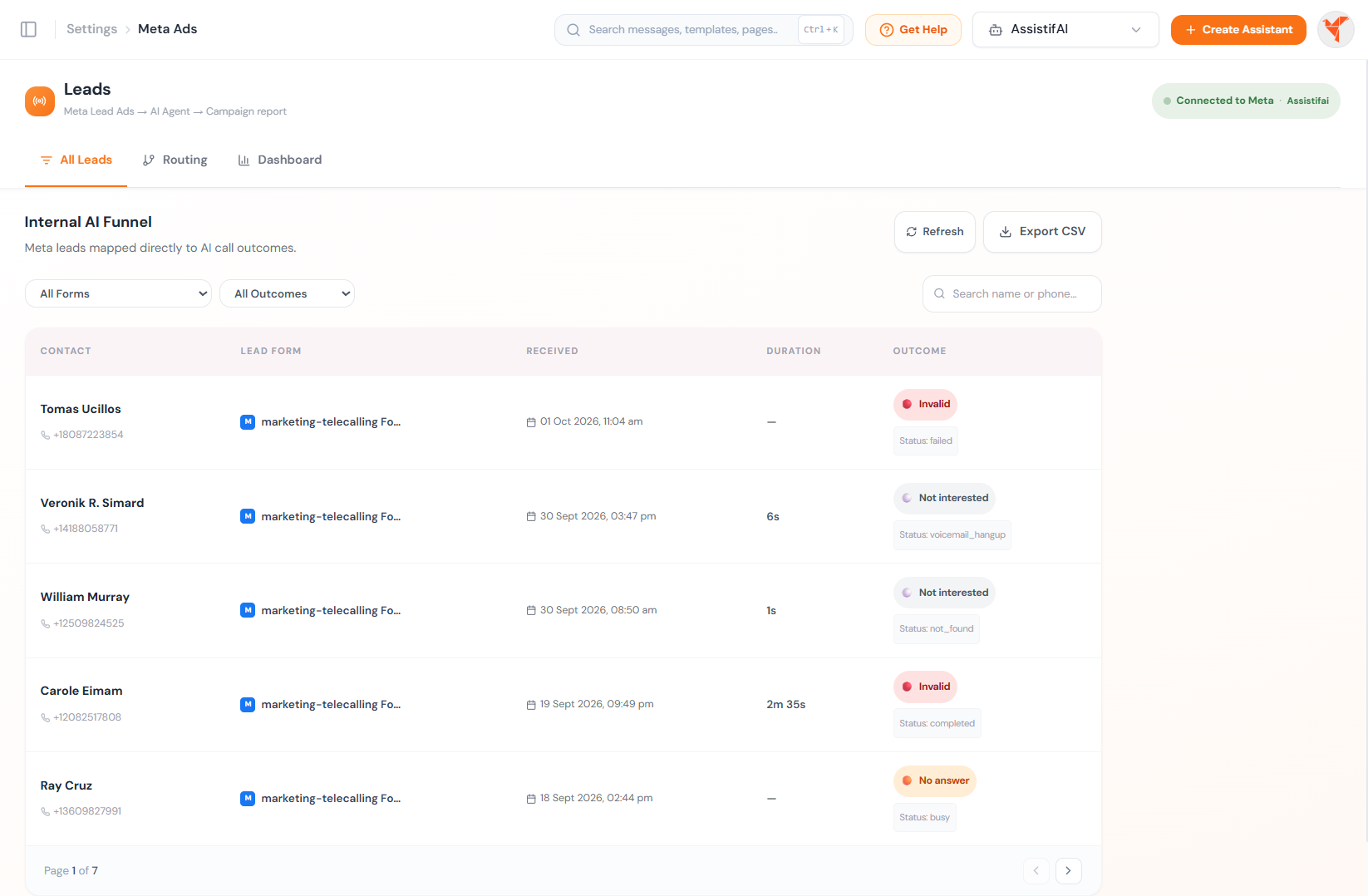
The Internal AI Funnel maps Meta leads directly towhat the AI call produced: the contact and number pulled from the form, whichform it came from, when it arrived, how long the call ran, and the outcome theagent classified it as. Filter by form or outcome, search a name or number, ortake the whole list out with Export CSV.
Step 14: Dashboard — what the campaign is actually worth
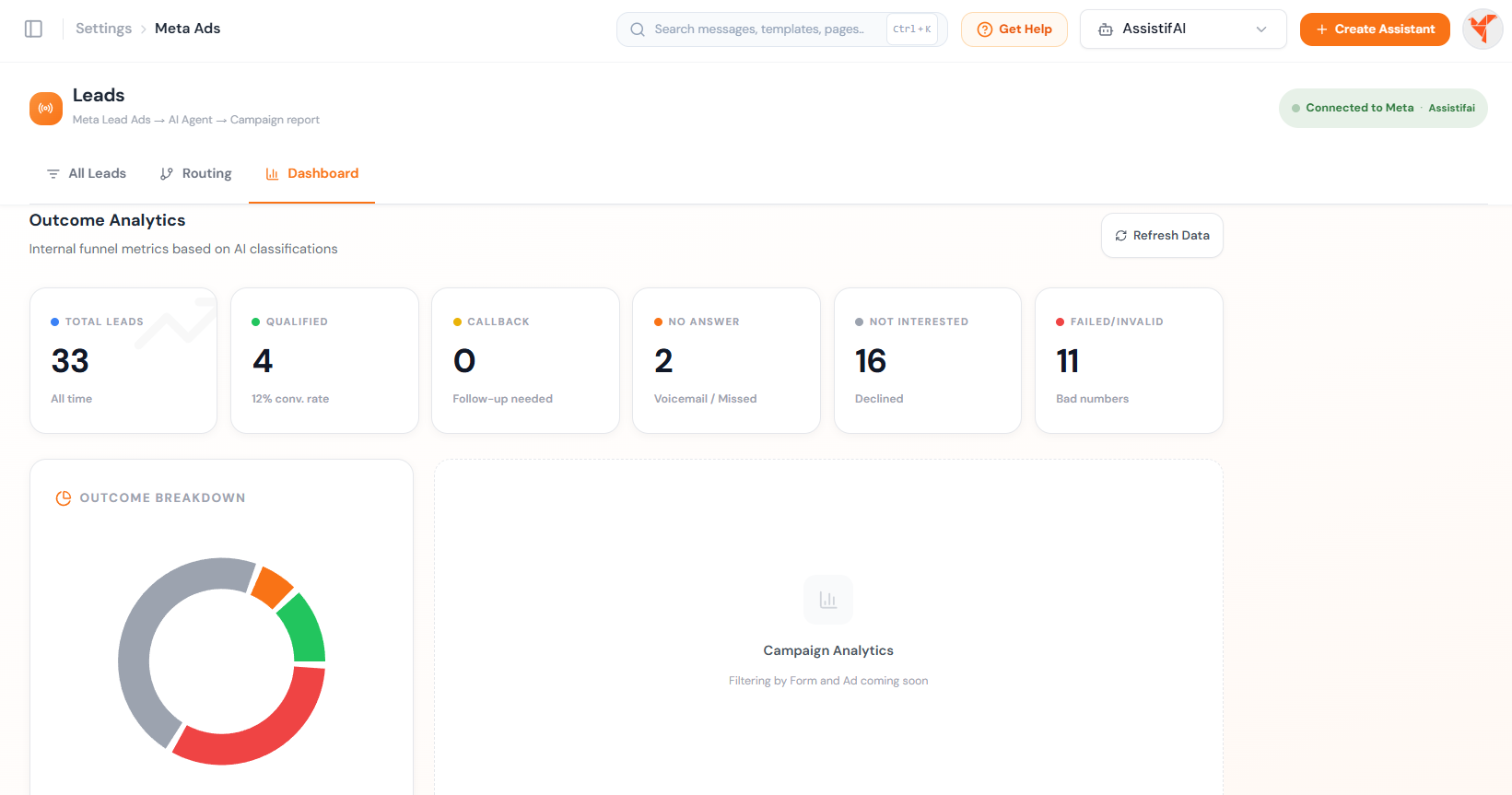
Outcome Analytics totals every lead by classification— qualified, callback, no answer, not interested, failed or invalid — with theconversion rate beside it and an outcome breakdown below. The Connected toMeta badge in the top right is your at-a-glance check that theintegration is still live; if it ever goes quiet, look there first.
What happens after a leadcomes in
A prospect submits one of the forms you activated.AssistifAI receives the submission over the webhook, pulls the name and phonenumber out of it, and the AI agent assigned to that form places an outboundcall — typically within seconds of the submit, while the ad is still on theprospect’s screen.
If something looks off
Still stuck? Use Get Help in the AssistifAI topbar, or book time with us at assistifai.me/book-a-demo.

